

USER GUIDE FOR INTEGRATION WITH MAGENTO 2
Table of contents:
Step 1. Subscribe to a MageShip account
Step 2.Download MageShip extension
Step 3. Website URL Required configuration
We color coded this guide to visually HELP
ACTION BULLETS: COLORED PURPLE IS PERFORMED IN MAGESHIP
ACTION BULLETS: COLORED ORANGE IS PERFORMED IN MAGENTO
Step 1. Subscribe to a MageShip account
Open your web browser
- Create a customer account https://mageship.com/
Check your email and confirm your account
- Subscribe to a MageShip product and complete the checkout until the success page.
Step 2. Download MageShip extension
Open your web browser
- Login your MageShip account https://mageship.io/customer/account/login/
Under your account in the left-navigation bar, find a tab named "My Downloadable Products"
Navigate to this location and click the "download" link in order to get the extension package required for the Magento extension installation step.
- Complete the installation successfully in Magento before proceeding to the next step. Installation instruction is offered in Installation Section
Step 3. Website URL Required configuration
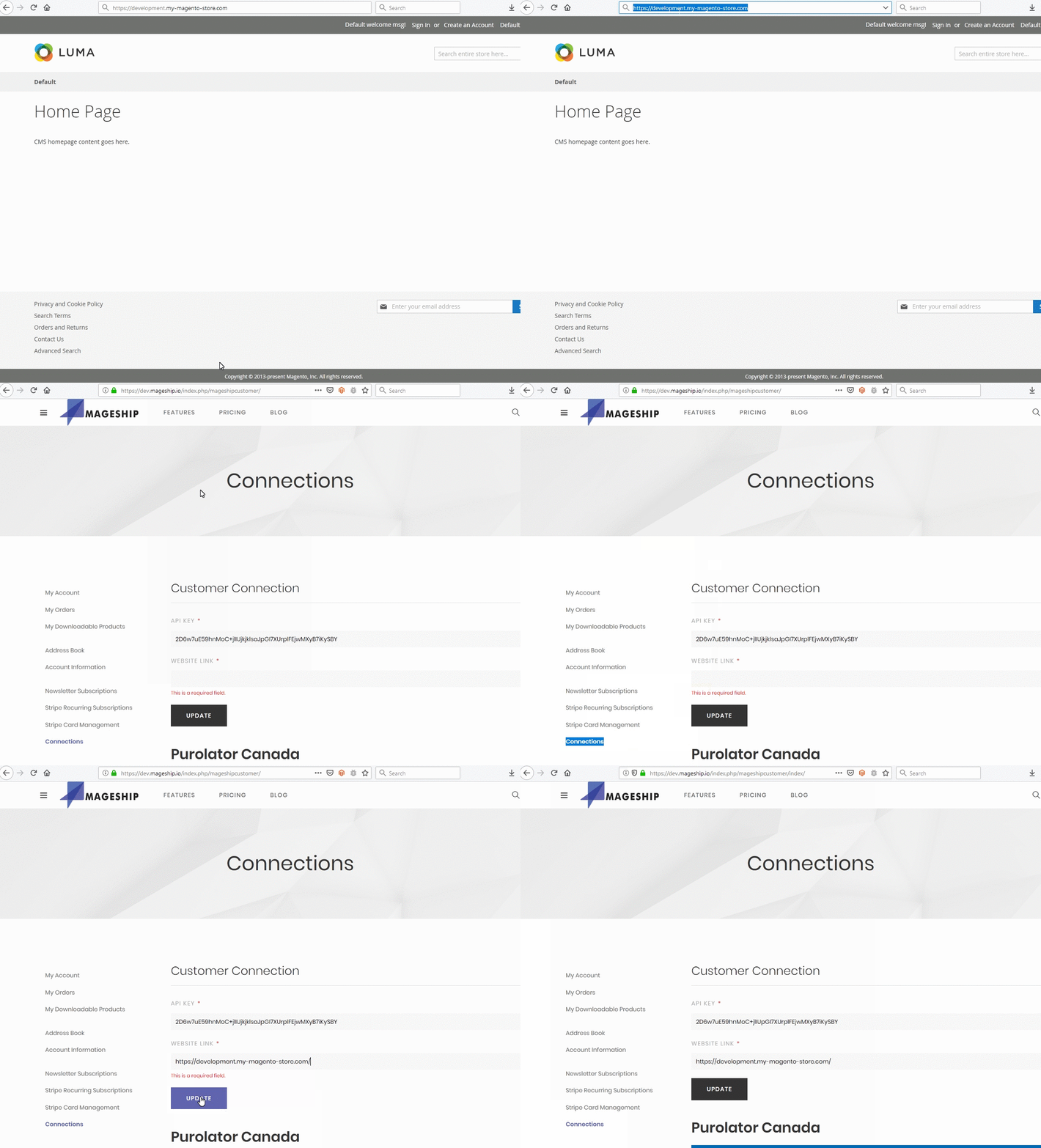
Open a new tab in your web browser
- Login your MageShip account
In the left-navigation bar find a tab named "Connection"
Open a new tab in your web browser
- Go to your Magento store homepage
- Copy the absolute website URL of your Magento store.
I.E https://my-magento-store.com/index.php/my-products.html
The absolute URL in this case is: https://my-magento-store.com/
If you're using a subdomain for development I.E
https://development.my-magento-store.com/
update this field and switch back to the LIVE site once you're finished with testing.
- Paste the website URL in your Connection tab > "WEBSITE LINK" field
IMPORTANT: Don't forget the forward slash at the end of your URL.
Note: You can change your website URL as many times as needed. Please be aware that doing so will break connection to the previous website on account.
Step 4. API-Key Required configuration
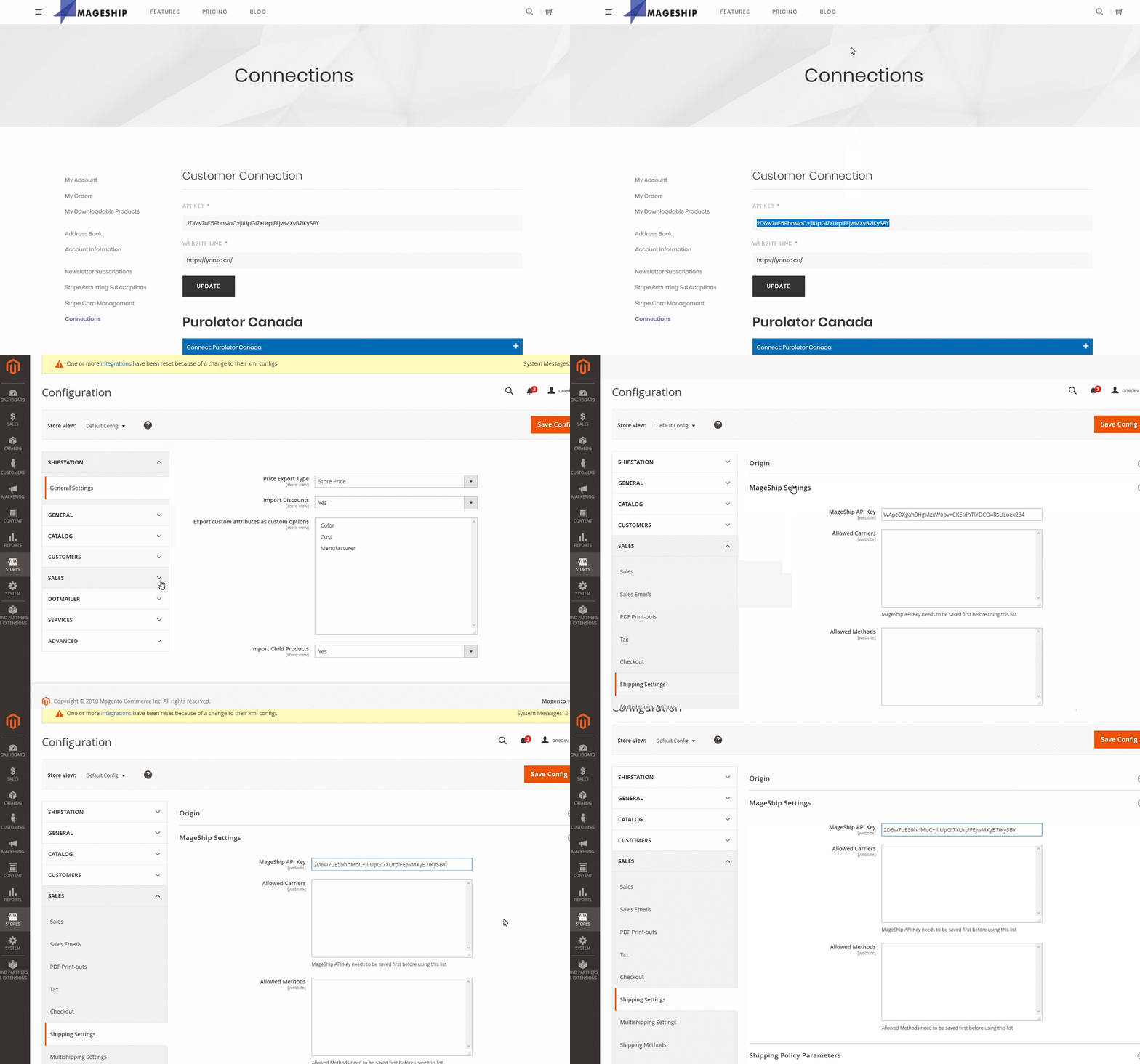
Login to your MageShip account in one tab
Login to your Magento store in another tab
Inside your MageShip account, in the left-navigation bar find a tab named "Connection"
Under this tab you will find your API-Key. (Required for the Module Configuration)
Action: Right click and Copy the API-Key full value from MageShip >>> Switch to your Magento store tab
Navigate to Store > Configuration > Sales > Shipping Settings > MageShip Settings
Action: Paste API-Key into field "MageShip API Key"
Comments
0 comments
Please sign in to leave a comment.